Useful VSCode Settings / Extensions for Development
April 23rd, 2025 | 6 min read
Last update: August 21st, 2025
All about the settings
Lately I have been using VSCode more and more for development, so I decided to share my settings and extensions. This has become way easier since they introduced the profile feature, which allows me to manage settings for different projects / technologies.
General Settings
Let's start off with a few basic settings that I use for all my projects (some settings might be default).
These settings include some extension specific settings, you can look them up down below.
{
  "[git-commit]": {
    "editor.rulers": [
      72,
      80
    ]
  },
  "diffEditor.ignoreTrimWhitespace": false,
  "editor.bracketPairColorization.enabled": true,
  "editor.codeActionWidget.includeNearbyQuickFixes": true,
  "editor.copyWithSyntaxHighlighting": false,
  "editor.fontFamily": "JetBrainsMono Nerd Font Mono",
  "editor.fontLigatures": true,
  "editor.formatOnPaste": true,
  "editor.formatOnSave": true,
  "editor.codeActionsOnSave": {
    "source.fixAll.biome": "explicit",
    "source.organizeImports.biome": "explicit",
    "source.sortImports": "explicit",
    "source.addMissingImports.ts": "never" // since this might import the wrong module
  },
  "editor.fontSize": 13,
  "editor.guides.bracketPairs": true,
  "editor.guides.bracketPairsHorizontal": "active",
  "editor.guides.highlightActiveIndentation": true,
  "editor.inlineSuggest.enabled": true,
  "editor.quickSuggestions": {
    "other": "on",
    "comments": "on",
    "strings": "off"
  },
  "editor.linkedEditing": true,
  "editor.minimap.maxColumn": 50,
  "editor.minimap.renderCharacters": false,
  "editor.minimap.size": "fit",
  "editor.mouseWheelZoom": true,
  "editor.suggest.localityBonus": true,
  "editor.tabSize": 2,
  "editor.wordBasedSuggestions": "currentDocument",
  "explorer.fileNesting.enabled": true,
  "explorer.fileNesting.patterns": {
    "*.component.ts": "$(capture).component.html, $(capture).component.css, $(capture).component.scss, $(capture).module.ts, $(capture).component.spec.ts",
    "*.ts": "${capture}.js, ${capture}.spec.ts, ${capture}.html"
  },
  "extensions.experimental.affinity": {
    "asvetliakov.vscode-neovim": 1
  },
  "files.autoSave": "afterDelay",
  "files.autoSaveDelay": 3000,
  "files.defaultLanguage": "${activeEditorLanguage}",
  "files.exclude": {
    "**/.classpath": true,
    "**/.factorypath": true,
    "**/.git": true,
    "**/.project": true,
    "**/.settings": true,
    "**/backend/target": true
  },
  "git.autofetch": true,
  "git.autofetchPeriod": 240,
  "git.enableSmartCommit": true,
  "git.openRepositoryInParentFolders": "always",
  "github.copilot.enable": {
    "*": true,
    "markdown": false,
    "plaintext": false,
    "scminput": false
  },
  "github.copilot.chat.agent.thinkingTool": true,
  "github.copilot.chat.editor.temporalContext.enabled": true,
  "github.copilot.chat.generateTests.codeLens": true,
  "github.copilot.chat.scopeSelection": true,
  "githubPullRequests.pullBranch": "never",
  "markdown-preview-enhanced.previewTheme": "atom-dark.css",
  "path-intellisense.autoTriggerNextSuggestion": true,
  "redhat.telemetry.enabled": false,
  "search.exclude": {
    "**/node_modules": true,
    "**/target": true
  },
  "tailwindCSS.includeLanguages": {
    "astro": "html"
  },
  "terminal.integrated.defaultProfile.linux": "zsh",
  "terminal.integrated.defaultProfile.windows": "Git Bash",
  "terminal.integrated.fontFamily": "JetBrainsMono Nerd Font Mono",
  "terminal.integrated.fontSize": 14,
  "terminal.integrated.scrollback": 10000,
  "vsicons.dontShowNewVersionMessage": true,
  "workbench.editorAssociations": {
    "git-rebase-todo": "gitlens.rebase"
  },
  "workbench.iconTheme": "vscode-icons"
}
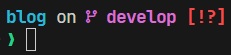
You might have noticed the different font, I enjoy a customized version of JetBrains Mono from Nerd Fonts. The patched version comes with a lot of icons, which I find useful for development, especially in the terminal.
Together with Starship I have a nice terminal experience on windows.
Java
Now for Java specific development:
{
    "java.compilation.copyAnnotations": true,
    "java.compile.nullAnalysis.mode": "automatic",
    "java.completion.chain.enabled": true,
    "java.configuration.updateBuildConfiguration": "automatic",
    "java.debug.settings.onBuildFailureProceed": true,
    "java.debug.settings.showStaticVariables": true,
    "java.editor.reloadChangedSources": "auto",
    "java.maven.downloadSources": true,
    "java.project.resourceFilters": [
        "node_modules", // in mono repos this annoys me a lot
        "\\.git",
        "target"
    ],
}
Typescript and JavaScript
And finally for Typescript and JavaScript development:
{
  "javascript.suggest.autoImports": true,
  "javascript.suggest.paths": true,
  "javascript.suggest.includeAutomaticOptionalChainCompletions": true,
  "javascript.suggest.includeCompletionsForImportStatements": true,
  "javascript.updateImportsOnFileMove.enabled": "always",
  "typescript.updateImportsOnFileMove.enabled": "always",
  "typescript.suggest.autoImports": true,
  "typescript.suggest.paths": true,
  "typescript.suggest.includeAutomaticOptionalChainCompletions": true,
  "typescript.suggest.includeCompletionsForImportStatements": true,
}
Extensions
Here are some extensions that I find useful for development, some of them you probably already know, but I wanted to include a full list.
Extensions- Click me
I linked them to the marketplace -> should be easier to install
- Better Comments
- ZipFS
- VSCode Neovim
- Markdown Mermaid
- Biome
- Mermaid Markdown Syntax Highlighting
- Tailwind CSS IntelliSense
- Turbo Console Log
- NPM IntelliSense
- Path IntelliSense
- Regex
- Package JSON Upgrade
- Gitignore
- Docker
- Git History
- XML Tools
- GitLens
- EditorConfig
- Prettier - Code Formatter
- Git Project Manager
- Auto Close Tag
- Auto Complete Tag
- Auto Rename Tag
- GitHub Copilot
- GitHub Copilot Chat
- GitHub Actions
- GitHub Pull Requests and Issues
- Go
- Excel Viewer
- Todo Tree
- Draw.io Integration
- Headwind
- Output Colorizer
- Registry Editor
- Edit CSV
- Colorize
- Gutter Preview
- Bash IDE
- Rainbow CSV
- Git Graph
- Dotenv
- Better Folding
- SCSS IntelliSense
- Docker Tools
- PostgreSQL
- Remote - Containers
- Remote - SSH
- Remote - SSH: Editing
- Remote - WSL
- Remote Extension Pack
- Makefile Tools
- Remote Explorer
- Remote Server
- Live Share
- Material Icon Theme
- Quicktype
- XML
- YAML
- Live Server
- Markdown Preview Enhanced
- SCSS Formatter
- Auto Import
- Code Spell Checker
- Stylelint
- VSLook
- Snippets
- Even Better TOML
- MDX
- Error Lens
- Intellicode API Usage Examples
- Intellicode
- VSCode Icons
- Vim
- Todo Highlight
- VimL
- Pretty TS Errors
- Markdown PDF
- Markdown All in One
- Codesandbox Black Theme
Don't want to manually install?
# Run this in your terminal
code --install-extension aaron-bond.better-comments
code --install-extension arcanis.vscode-zipfs
code --install-extension asvetliakov.vscode-neovim
code --install-extension bierner.markdown-mermaid
code --install-extension biomejs.biome
code --install-extension bpruitt-goddard.mermaid-markdown-syntax-highlighting
code --install-extension bradlc.vscode-tailwindcss
code --install-extension chakrounanas.turbo-console-log
code --install-extension christian-kohler.npm-intellisense
code --install-extension christian-kohler.path-intellisense
code --install-extension chrmarti.regex
code --install-extension codeandstuff.package-json-upgrade
code --install-extension codezombiech.gitignore
code --install-extension docker.docker
code --install-extension donjayamanne.githistory
code --install-extension dotjoshjohnson.xml
code --install-extension eamodio.gitlens
code --install-extension editorconfig.editorconfig
code --install-extension esbenp.prettier-vscode
code --install-extension felipecaputo.git-project-manager
code --install-extension formulahendry.auto-close-tag
code --install-extension formulahendry.auto-complete-tag
code --install-extension formulahendry.auto-rename-tag
code --install-extension github.copilot
code --install-extension github.copilot-chat
code --install-extension github.vscode-github-actions
code --install-extension github.vscode-pull-request-github
code --install-extension golang.go
code --install-extension grapecity.gc-excelviewer
code --install-extension gruntfuggly.todo-tree
code --install-extension hediet.vscode-drawio
code --install-extension heybourn.headwind
code --install-extension ibm.output-colorizer
code --install-extension ionutvmi.reg
code --install-extension janisdd.vscode-edit-csv
code --install-extension kamikillerto.vscode-colorize
code --install-extension kisstkondoros.vscode-gutter-preview
code --install-extension mads-hartmann.bash-ide-vscode
code --install-extension mechatroner.rainbow-csv
code --install-extension mhutchie.git-graph
code --install-extension mikestead.dotenv
code --install-extension mohammadbaqer.better-folding
code --install-extension mrmlnc.vscode-scss
code --install-extension ms-azuretools.vscode-docker
code --install-extension ms-ossdata.vscode-postgresql
code --install-extension ms-vscode-remote.remote-containers
code --install-extension ms-vscode-remote.remote-ssh
code --install-extension ms-vscode-remote.remote-ssh-edit
code --install-extension ms-vscode-remote.remote-wsl
code --install-extension ms-vscode-remote.vscode-remote-extensionpack
code --install-extension ms-vscode.makefile-tools
code --install-extension ms-vscode.remote-explorer
code --install-extension ms-vscode.remote-server
code --install-extension ms-vsliveshare.vsliveshare
code --install-extension pkief.material-icon-theme
code --install-extension quicktype.quicktype
code --install-extension redhat.vscode-xml
code --install-extension redhat.vscode-yaml
code --install-extension ritwickdey.liveserver
code --install-extension shd101wyy.markdown-preview-enhanced
code --install-extension sibiraj-s.vscode-scss-formatter
code --install-extension steoates.autoimport
code --install-extension streetsidesoftware.code-spell-checker
code --install-extension stylelint.vscode-stylelint
code --install-extension sudoaugustin.vslook
code --install-extension tahabasri.snippets
code --install-extension tamasfe.even-better-toml
code --install-extension unifiedjs.vscode-mdx
code --install-extension usernamehw.errorlens
code --install-extension visualstudioexptteam.intellicode-api-usage-examples
code --install-extension visualstudioexptteam.vscodeintellicode
code --install-extension vscode-icons-team.vscode-icons
code --install-extension vscodevim.vim
code --install-extension wayou.vscode-todo-highlight
code --install-extension xadillax.viml
code --install-extension yoavbls.pretty-ts-errors
code --install-extension yzane.markdown-pdf
code --install-extension yzhang.markdown-all-in-one
code --install-extension ziterz.codesandbox-black-theme
Now if you have a powerful pc, you can use all of these extensions at once, but if you are like me and have a laptop with limited resources, you might want to disable some of them.
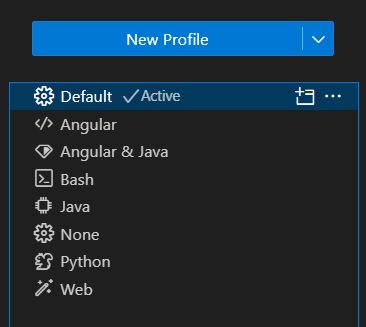
This is where the profiles come in handy, you can create a profile for each project and only enable the extensions you need for that project.
To see all the profiles you have, you can go to the command palette Ctrl + Shift + P and type Preferences: Open Profiles (UI).

I'd recommend installing general extensions for the default profile like icons and themes, and then copy from there to your project specific profiles.
That's all for now—hopefully, you found this post helpful and discovered some extensions you weren't aware of.